
Updates

Follow new updates and improvements to Spacelift.

Write, test, and explain policies with a smarter Infrastructure Assistant!

You need a guardrail, and Rego stands between you and the governance you need. So you ask an AI to write it. The policy looks right, but it references an input field that doesn't exist and mixes v0 and v1 syntax. You paste it in, hit a compile error, copy the error back into the chat, and go around again. Meanwhile, the guardrail you needed still isn't enforcing anything.
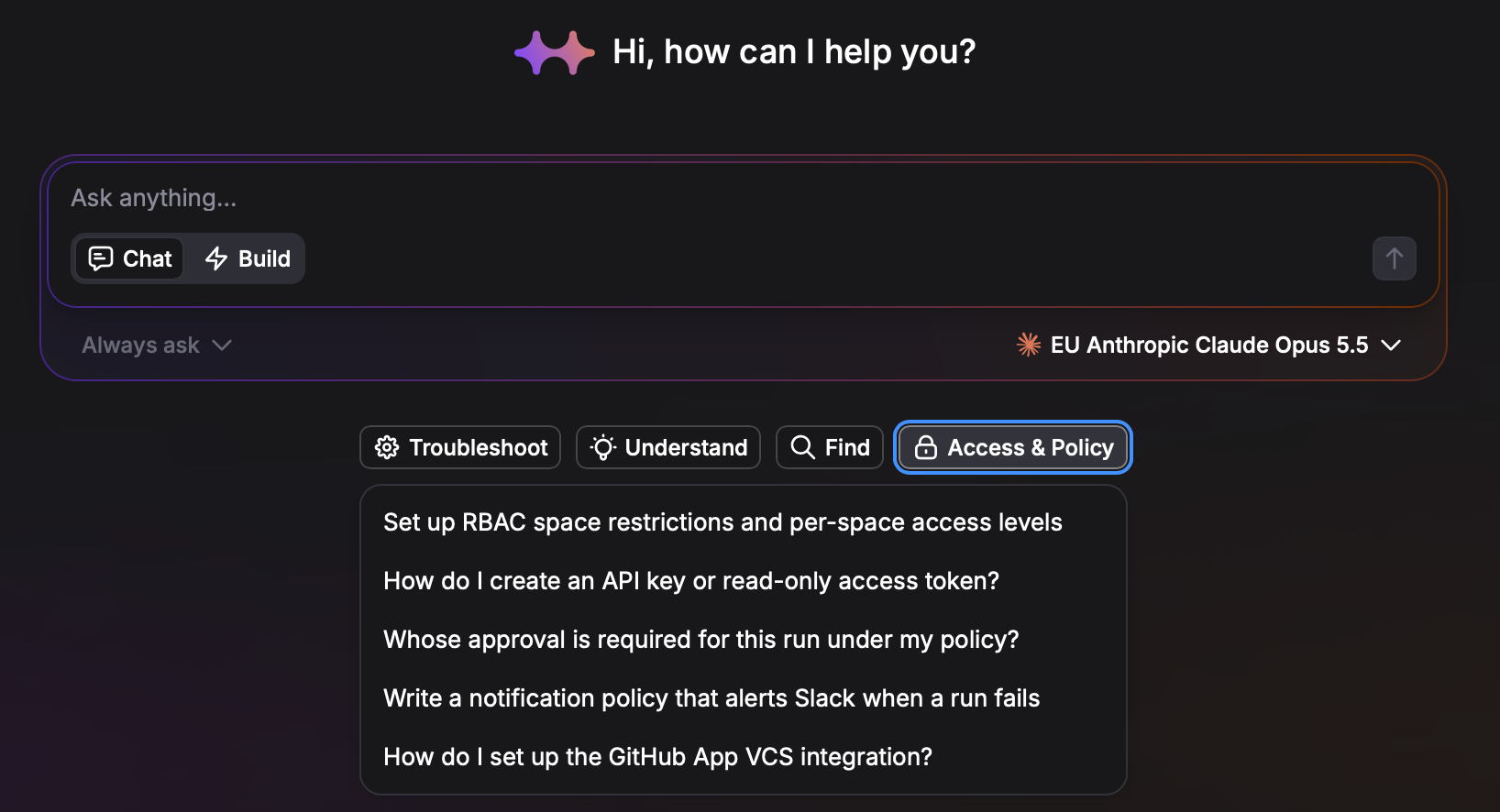
Infrastructure Assistant now runs that loop itself, so you only see the policy once it works.

Get policies tested before they reach you

The Assistant has two new read-only tools. One fetches the input schema for any policy type from the policy contract Spacelift maintains, so drafts use fields that exist (input.spacelift.run, input.terraform.resource_changes, input.reviews). The other evaluates a draft against a sample input and returns the compile errors or the decision. The Assistant drafts, evaluates, and fixes until the body compiles and returns the expected decision.

Go from plain English to a saved policy

Policies > Create policy > Create with Infrastructure Assistant opens Build mode with a starter prompt. Add an outcome like "Block unencrypted S3 buckets," answer its questions, and the Assistant picks the policy type and creates the policy in Spacelift. Ask it to test first and you see both decisions before anything is saved:

Before you save it, test it against a plan that creates an unencrypted bucket and one with an encrypted bucket, and show me both decisions.

Know what a policy does before you touch it

The Ask button on a policy page opens Ask mode scoped to that policy. Use it to explain what a rule does and what breaks if you delete it, or to trace why a run is waiting on approval and who can approve it, using the actual policy body and run.

Keep Rego v0 policies compiling

On a v0 policy, the Assistant states which Rego version it writes in, so v0 and v1 constructs (if, contains, import rego.v1) don't get mixed in one body.

Schema lookup and evaluation work in Ask mode with no approval prompt. Creating or editing a policy requires Build mode.

We are very excited to bring you such a helpful update to the skills of Spacelift Intelligence. As always, take it for a spin and let us know what you think. We always want to hear from you!
Read the policy docs →
Improvement

Terragrunt Is Now First-Class in Spacelift

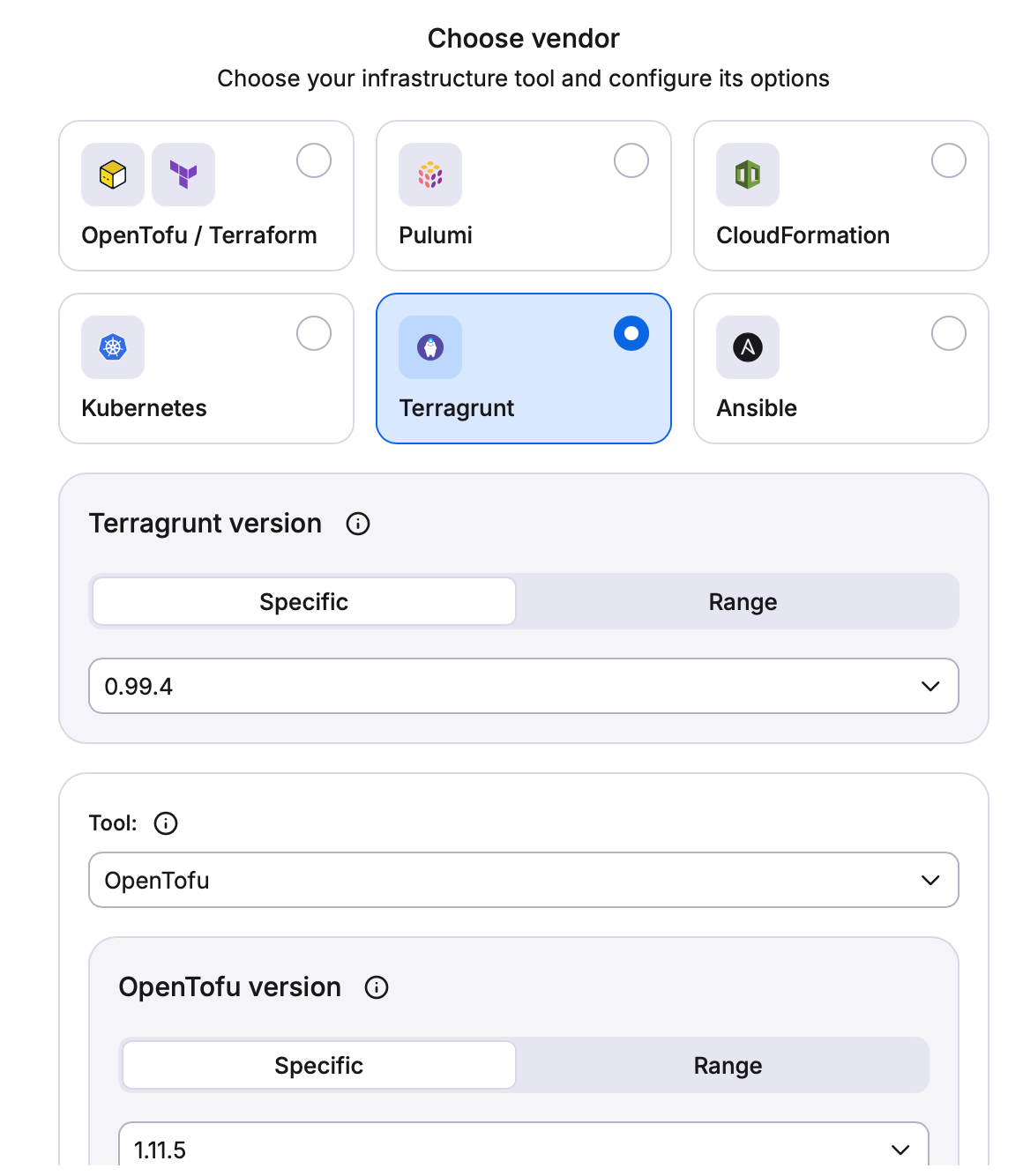
In our continued effort to bring you the best possible platform for your IaC management, today we are happy to announce that Terragrunt is now officially a first-class citizen in Spacelift! What does that mean exactly? The biggest news is that we now support native state management inside the platform. That means you can now let Spacelift do what Spacelift does best, while using your Terragrunt projects. Previously, you had to use remote state configurations if you wanted to use Terragrunt inside Spacelift, but not anymore.

This is a big win for all of our users, and provides even more options and flexibility when it comes to working with multiple frameworks across clouds. Be sure to give it a go, and let us know how you like it. Your feedback and input is critical for us.


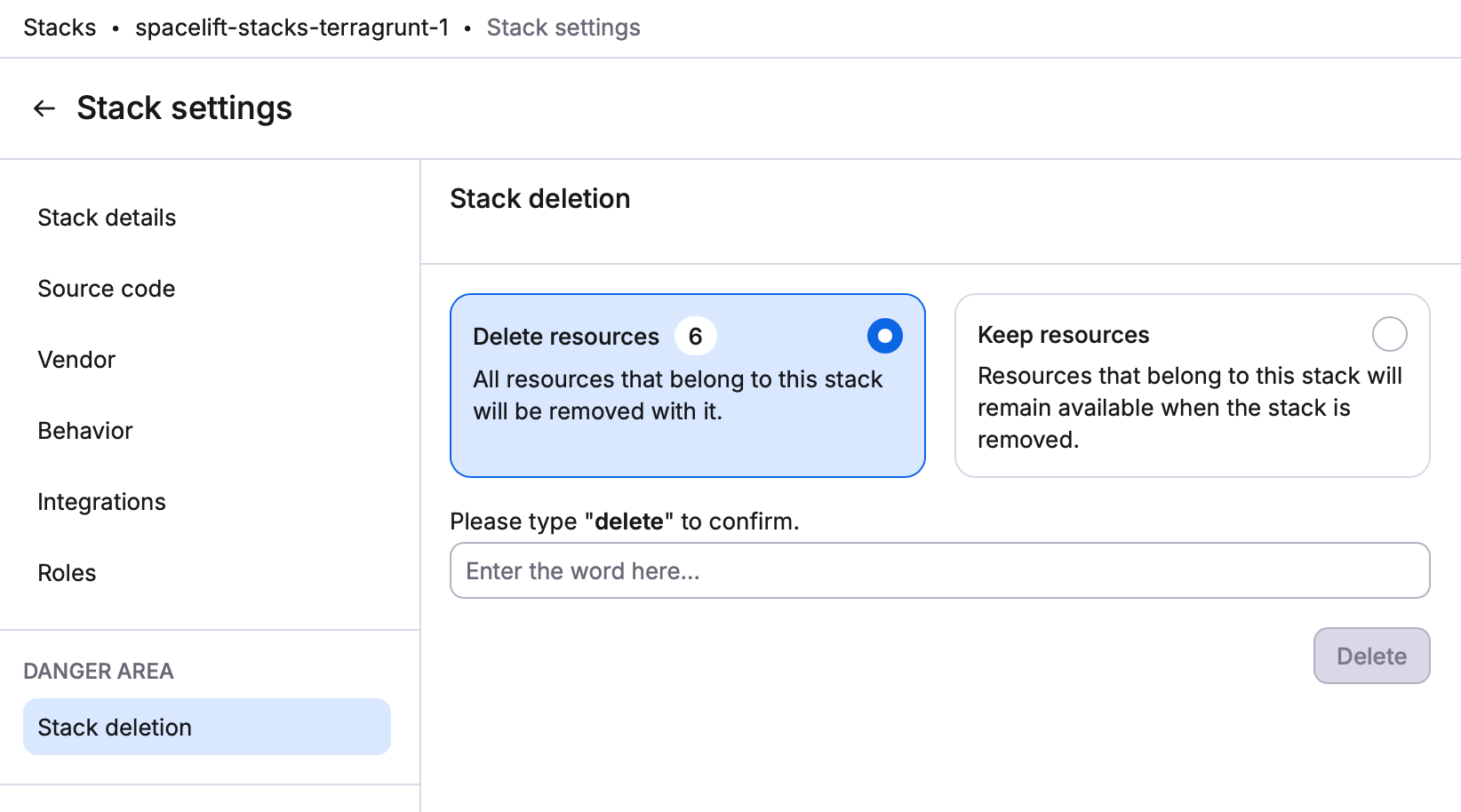
Note: In the process of delivering the functionality for Spacelift to manage the state of Terragrunt projects natively, previously the behavior of selecting to “Delete Resources” when deleting a stack was that none of the resources would actually be removed. So whether you picked to keep or delete resources, they would simply remain. This non-expected behavior has now been remediated. Now, the expected behavior should be exactly what you select when deleting resources. When deleting the stack, resources will either stay or be deleted based on which option you select.

For more info on Terragrunt support in Spacelift, and to get started, check out the blog, video, and Documentation.

Improvement

Improved Keyboard Shortcuts for Run View

We've updated the keyboard shortcuts in the Run view to provide a better, more reliable experience across all platforms and browsers. We've standardized our shortcuts to use a consistent modifier pattern (Ctrl+Alt on Windows/Linux, Cmd+Opt on Mac) to:

  • Eliminate conflicts with browser and system shortcuts

  • Work reliably across Chrome, Firefox, Safari, and Edge

  • Prevent accidental triggers that could interrupt your workflow

New Shortcuts:

  • Retry: Ctrl+Alt+R (Mac: Cmd+Opt+R)

  • Confirm: Ctrl+Alt+Enter (Mac: Cmd+Opt+Enter)

  • Stop: Ctrl+Alt+S (Mac: Cmd+Opt+S)

  • Discard: Ctrl+Alt+X (Mac: Cmd+Opt+X)

  • Perform Again:Ctrl+Alt+P (Mac: Cmd+Opt+P)

  • Prioritize: Ctrl+Alt+H (Mac: Cmd+Opt+H)

  • Promote: Ctrl+Alt+G (Mac: Cmd+Opt+G)

  • Approve: Ctrl+Alt+A (Mac:Cmd+Opt+A)

  • Reject: Ctrl+Alt+Q (Mac: Cmd+Opt+Q)

You can also access the keyboard shortcuts by navigating to the Help & Feedback section in Spacelift app. Look for the "Keyboard shortcuts" dropdown button, which will display all available keyboard commands to help you work more efficiently in the platform. Thank you for your patience as we continue improving your experience!

Improvement

Earlier updates